
Terrain Tools
Terrain adaptation and modeling.

Adapt to Terrain
Manually adapting the shape of a floor or roof to follow the terrain profile is a tedious and imprecise operation.
Adapt to Terrain automatically modifies the floor shape through ray-casting on the terrain, with sampling based on contour lines for maximum precision.



Create Slope
Creating slope geometries (embankments) from the edge of a floor to the terrain requires manual point-by-point modeling.
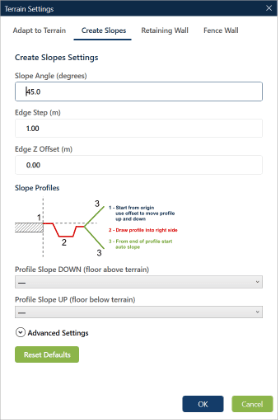
Create Slope automatically generates slopes with configurable angle, intelligent angle management, and automatic cleanup of existing vertices.



Retaining Wall
Modelling terrain around a retaining wall is manual work — managing slopes, flat sections and joins with the existing ground takes time.
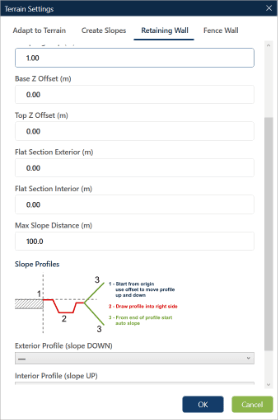
Retaining Wall automatically generates terrain geometry with slopes, flat sections and custom profiles around the selected retaining walls.
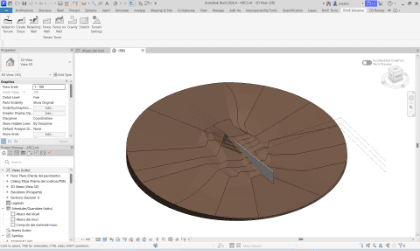
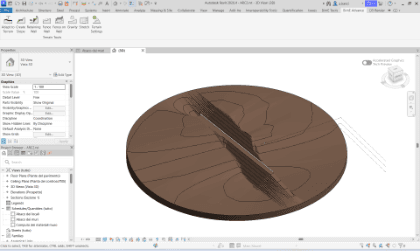
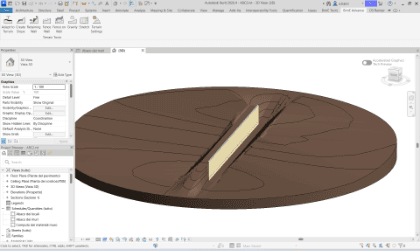

Fence Wall
Adapting a continuous wall to uneven terrain with controlled exposed and buried heights requires laborious manual segmentation.
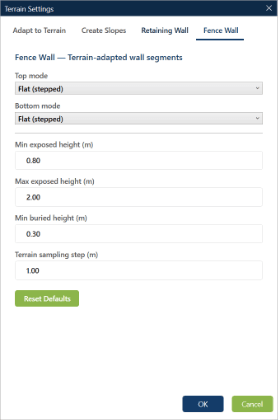
Fence Wall splits the wall into terrain-adapted segments, with flat or sloped top and bottom edges and parametric exposed/buried heights.
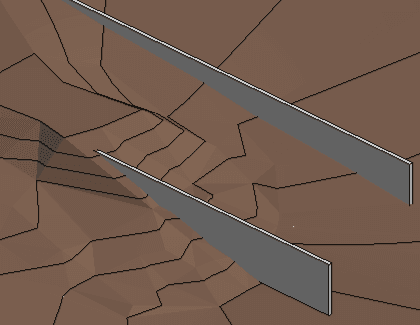
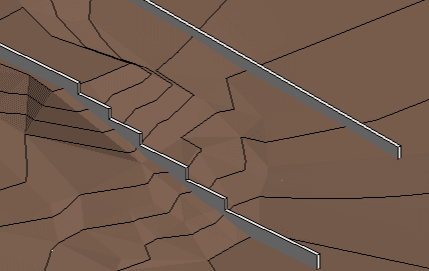

Fence on Wall
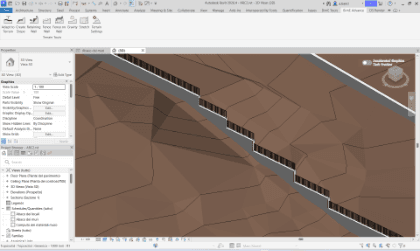
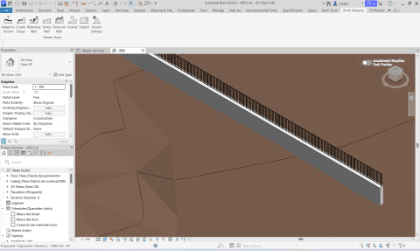
Placing railings on top of straight, curved or sloped walls requires manual modelling and per-point joins.
Fence on Wall generates railings along the centerline at the top of selected walls, supporting straight, curved and sloped walls.

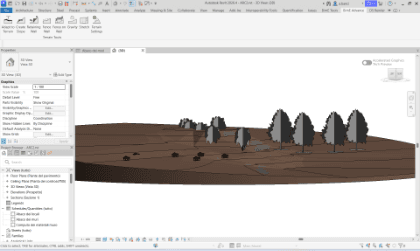
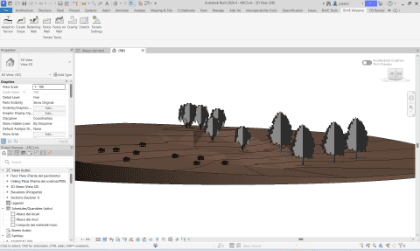
Gravity
Resting elements on terrain or a floor means computing the vertical offset manually for every instance.
Gravity vertically moves the selected elements so they rest on the nearest reference surface (floor, roof, toposolid).

Stretch
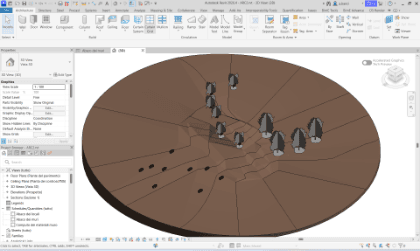
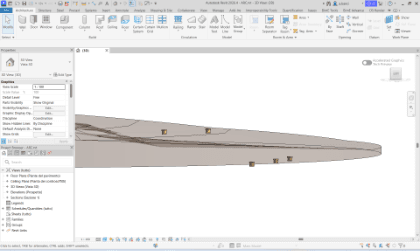
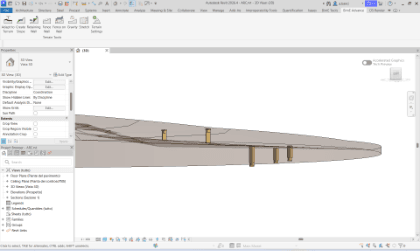
When an element has a gap to a reference surface, closing it by tweaking an instance parameter is repetitive manual work.
Stretch automatically computes the distance between the element face and the reference surface and updates the instance parameter to close the gap.
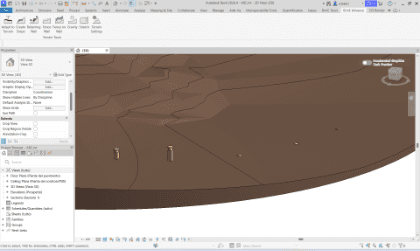

Terrain Settings
Without a central configuration spot, operating parameters (sampling density, tolerances, edge behavior) have to be tweaked inside each individual tool every time.
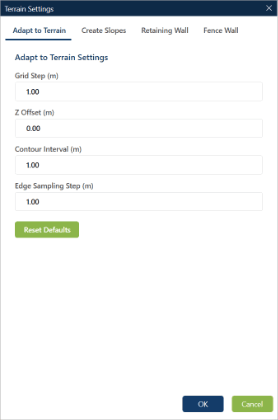
Terrain Settings gathers every shared parameter for the panel tools — Adapt to Terrain, Create Slope, Retaining Wall, Fence Wall — into a single window, with savable presets and one-click reset to defaults.
Stay updated with exclusive tips
Receive weekly Revit tips, new features and best practices directly in your email.
No spam, only valuable content. Unsubscribe with one click.